
In short
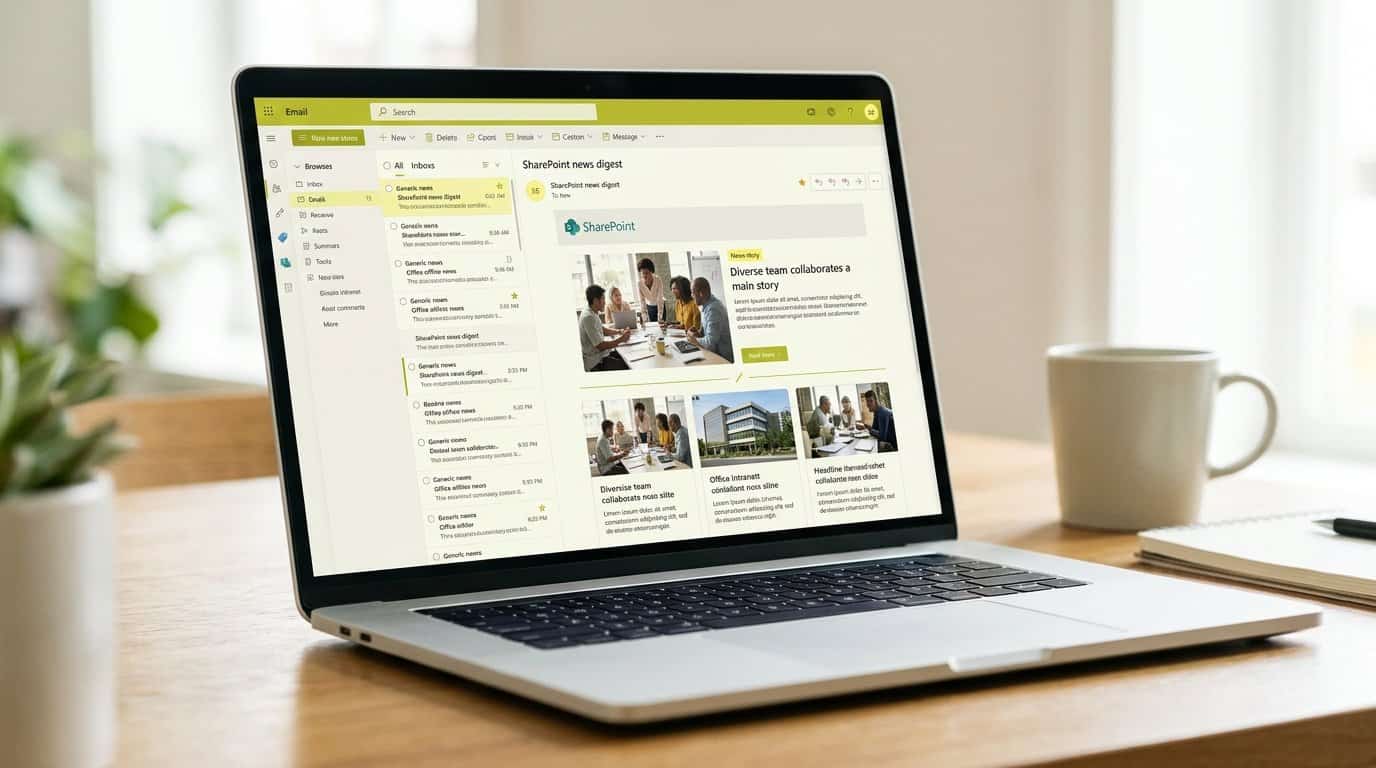
A SharePoint news digest emails your intranet news to the people who never open the intranet. Learn how to send a hand-picked digest, what the automatic weekly digest includes, and how to measure the readers it brings back.
Key takeaways
- Anyone with edit permissions on a SharePoint site with news can email a hand-picked news digest.
- The automatic digest sends at most one email per week with no more than 10 news posts.
- Only organization news site posts, boosted posts and relevant unread posts qualify for the automatic digest.
- SharePoint page analytics counts views from Outlook, SharePoint, Teams and Engage in one report per post.
- SharePoint Administrators can mark up to 100 sites as organization news sites.
Why email intranet news at all?
You know the pattern. You publish a news post on the intranet, the analytics are final after a few days, and the number of readers is a fraction of the audience you actually needed to reach, a pattern we unpack in detail in why SharePoint news goes unread. The colleagues hardest to reach, frontline staff, field teams, people who spend their day in Outlook and Teams rather than in a browser, rarely type an intranet URL on their own initiative. Publishing on SharePoint is necessary, but it is not distribution. Email is where those colleagues already are, and that is precisely the gap the SharePoint news digest was built to close.
A news digest is a roll-up of news posts you have already published, sent as an email. Microsoft describes it as being like an email newsletter, but without the extra work, because the digest pulls the stories, images and summaries directly from your existing SharePoint news posts rather than asking you to rebuild them in a second tool.[1] The barrier to sending one is low: anyone with edit permissions on a site with news can email a digest. If you want to control who can send one, you adjust those site permissions, there is no separate digest-specific admin role.[1]
- Colleagues who never open the intranet get your news in the inbox they already check
- Your team reuses published posts instead of producing a second piece of content for email
- Anyone with edit permissions on a news site can send a digest, so the comms team is not a bottleneck for every send
SharePoint actually gives you two ways to run a digest: a hand-picked one you curate yourself, and an automatic weekly one SharePoint assembles for each user. The next two sections walk through both, so you can decide which mode fits which moment in your communication plan.
How do you send a hand-picked digest?
The hand-picked digest is the mode you use when you, the communicator, decide what deserves inbox space. You build it from the News web part on a page that already shows news, and the whole flow takes a few minutes:[1]
- Go to the page that has the news you want to send. To pull stories from more than one site, set the news source in the News web part to the sites you want.
- In the News section, select See all. If you do not see the link, the page simply shows fewer posts than are published, because See all only appears when more posts exist than the web part displays.
- Select Email a news digest.
- Use the checkboxes to select the news stories to include, then select Next.
- Enter a title for your digest. This title becomes the subject line of the email, so write it the way you would write a newsletter subject.
- Add your recipients in the To box, either individual names or group names, and select Send news digest.
Two constraints are worth knowing before you promise a stakeholder a branded send. First, you cannot change the appearance of the images, the header area or the summary area of the email; the digest renders the posts as they are.[1] Second, the digest is saved as a page in the site's Pages library, but that page is not meant for direct use; it only holds what the email needs. Treat the email itself as the deliverable and the Pages library entry as plumbing.
In practice, the hand-picked digest works best when curation is the point: a monthly round-up for a specific population, a set of stories that support one campaign, or a catch-up after a busy news week. You choose the stories, the order of priority is yours, and the recipients are yours to define.
What does the automatic weekly digest send?
The second mode needs no editor at all. The SharePoint auto-news digest sends each user an automated email about the latest news posts that are relevant to them but that they have not yet viewed, so nobody on your team has to curate anything.[2] The rules that govern what it sends are strict:[2]
- At most one digest email per user per week, and no digest at all in weeks when nothing relevant is unread
- No more than 10 news posts in each digest
- Authoritative news posts published on organization news sites
- News posts boosted by the organization that the user has access to
- Published posts that are relevant to the user and not yet viewed, determined through Microsoft Graph
- Only posts the user has permission to see, so nobody receives news they cannot access
One term in that list deserves a definition. An organization news site, sometimes called an org news site, is a SharePoint site that administrators mark as official or authoritative for news; posts published there get special visual treatment and appear on the SharePoint start page. SharePoint Administrators can designate up to 100 organization news sites, and in multi-geo tenants each geo location can use a central site, its own regional site, or both.[3] If you want the automatic digest to reliably carry your flagship announcements, make sure the sites that publish them are marked this way.
Finally, know who holds the off switch. The feature is managed at tenant level: a tenant administrator can remove the auto-news digest from the whole organization through PowerShell, and individual users can unsubscribe or resubscribe at any time using Notification Settings at the bottom of the email.[2] Before you plan reporting around the automatic digest, confirm with your SharePoint administrator that it is switched on for your tenant.
Side by side, the two digest modes look like this:
| Hand-picked digest | Automatic weekly digest | |
|---|---|---|
| Who curates | You, story by story | SharePoint, per user, via Microsoft Graph |
| What it contains | Exactly the posts you tick | Authoritative org news, boosted posts, and relevant unread posts the user can access |
| Cap | Your choice of stories and recipients | Max 10 posts, max one email per user per week, none if nothing is unread |
| Subject line | Your digest title | Generated by SharePoint |
| Design | Fixed images, header and summary area | Your organization's theme colors and logo, applied automatically |
| Best for | Launches, campaigns, must-read announcements | An always-on catch-up for news employees missed |
Digest, single email or newsletter: which for what?
The digest is not a replacement for your newsletter, and treating it as one is how inboxes get fatigued. Microsoft's own framing makes the division clear: the digest recycles news that already exists on SharePoint, so it asks nothing of you that publishing has not already done.[1] Your newsletter, by contrast, is an original editorial product with its own curation, design and voice. Give each channel one job:
- News digest: stories already published as SharePoint news posts, rolled up for people who missed them on the intranet
- Internal newsletter: original curated content, commentary and features that exist only in the newsletter, and where you can apply the full set of internal newsletter metrics to judge performance
- Standalone email: the rare story that truly matters to everyone, pushed on its own so it does not compete for attention inside a round-up
A practical allocation rule for your next planning cycle: if a story is already a news post on SharePoint, it is digest material. If it needs original writing, design or a narrative arc, it is newsletter material. If it is a restructuring, a major leadership change or a crisis update, it earns its own email. And resist the temptation to push the same story through every channel at once; when employees see identical content in the digest, the newsletter and a standalone send, they learn that your emails repeat themselves, and open rates across all three suffer.
How do you measure readers who never visit SharePoint?
Once your news travels by email, your measurement has to follow it. SharePoint page analytics reports how users interact with a news post across all the distribution channels where it has been shared, including Outlook, SharePoint, Teams and Engage, so digest readership shows up on the news post itself rather than disappearing into your email tool.[4] For news posts created as Made for Email (the natively readable inbox version of a post), email views, viewers and page traffic are added to the page analytics, though average time spent per user reflects online views only.[4]
Be aware of the licensing gate. A Microsoft Viva suite or Viva Communications and Communities licence is required to see the usage breakdown by distribution channel such as Outlook, SharePoint, Teams and Engage, along with metrics like reactions and unique viewers who clicked a link, and to export the data to Excel or PowerPoint.[4] Without it, you see the aggregate numbers but not which channel brought the readers.
Even with the licence, there is a gap you will feel quickly. Native page analytics tells you how many people viewed a post and through which channel, but not which department or country those readers sit in, which is exactly the question an IC manager needs answered when a digest is meant to reach sales in Germany or plant teams in France. This is consistent with the wider picture: in Tryane's Digital Workplace Benchmark 2026, an assessment based on demos, expert interviews and public data, SharePoint scores 45% on Analytics, the lowest score any of the 12 platforms assessed received in any category.[5] Download the full Digital Workplace Benchmark 2026 to see how the major intranet platforms compare on analytics, targeting and publishing.
- Check whether your news posts are shared to Outlook as a distribution channel, so email readers are counted at all
- Confirm which Viva licence your tenant holds before promising channel-level reporting to leadership
- Decide which audience cuts you need by department or country, because that determines whether native analytics will suffice
See whether your digests bring readers back
A digest is only worth the send if it adds net reach, not if it simply re-counts the people who would have read the post on the intranet anyway. That is the question leadership will eventually ask: is the email bringing new readers, or duplicating the intranet? Native page analytics gets you part of the way, with views and channel breakdowns on each news post,[4] but it cannot tell you whether the colleagues the digest reached by email are new readers or the same regulars.
That is the gap Analytics for SharePoint is built for: it tracks employee engagement, views and activity on your SharePoint intranet and Viva Connections, so you can see who the digest actually brings back, whether email readers differ from intranet readers, and how that changes over time. Pair that with a clear view of your audience segments and you can adapt your digest strategy with evidence instead of instinct.
If you want to see what that looks like on your own news posts, book a 30-minute call with Jérémy to see how Analytics for SharePoint shows whether news digests bring readers back to SharePoint.
Frequently asked questions
Who can send a SharePoint news digest?
Anyone with edit permissions on a site with news can email a news digest. To change who can send one, you change their site permissions, so agree internally on who curates digests before the feature spreads across sites.
How many posts does the automatic SharePoint news digest send?
The automatic digest sends no more than 10 news posts, and at most one digest email per week per user. If there are no news items relevant to that user, no digest is sent at all.
Which news posts appear in the automatic digest?
Authoritative posts published on organization news sites, news posts boosted by the organization that the user can access, and published posts relevant to the user that they have not viewed yet. Users are never sent posts they do not have permission to see.
Can employees unsubscribe from the automatic news digest?
Yes. Users select Notification Settings at the bottom of the digest email and manage their email notification preferences from there, turning each option on or off.
Can I change the design of the digest email?
No. It is not yet possible to change the appearance of images, the header area or the summary area of the digest email. The automatic digest does pick up your organization's Microsoft 365 theme colors and logo automatically.
What is a SharePoint organization news site?
A site marked as official or authoritative for news in your organization. Its posts get special visual treatment and appear on the SharePoint start page, and SharePoint Administrators can designate up to 100 organization news sites.
Do email views count in SharePoint page analytics?
Yes. Page analytics shows how users interact with a news post across the distribution channels where it was shared, including Outlook, SharePoint, Teams and Engage. A Microsoft Viva suite or Viva Communications and Communities licence is required for channel breakdowns and some metrics.
Can admins turn off the automatic digest for the whole tenant?
Yes. The automatic digest is a tenant-level feature that a SharePoint administrator can switch off for the entire organization, so coordinate with your SharePoint admin before you build your email strategy around it.
Sources
Further reading
• Why SharePoint News Goes Unread, and What the Data Actually Shows
• SharePoint communication site vs team site: which to use
• Internal Email Open Rate Benchmarks: Why They Mislead
• Outlook newsletter template: build and send one in Outlook
If you want to see what cross-channel reporting looks like against your real data, Tryane runs a 15-minute walkthrough with no slides. Book a slot with Jérémy.