
In short
Outlook Newsletters replaces HTML template workarounds with structured, reusable editions built inside the new Outlook. We walk you through licences, admin settings, template creation and publishing, including the internal-only limit you should plan around before you switch.
Key takeaways
- Outlook Newsletters needs an Exchange Online mailbox plus SharePoint access; standalone Exchange plans cannot author content.
- Admins control authoring with OwaMailboxPolicy.OutlookNewslettersAccessLevel; unset values default to ReadWrite at General Availability.
- Templates in Outlook Newsletters cannot be published and cannot take authors or contributors, so co-authoring happens at newsletter level.
- External recipients are removed automatically when an edition is sent, which makes Outlook Newsletters an internal-only channel.
- Readers can react to sections and comment on editions; authors can disable these features per edition and admins org-wide.
Newsletters, editions and templates in Outlook
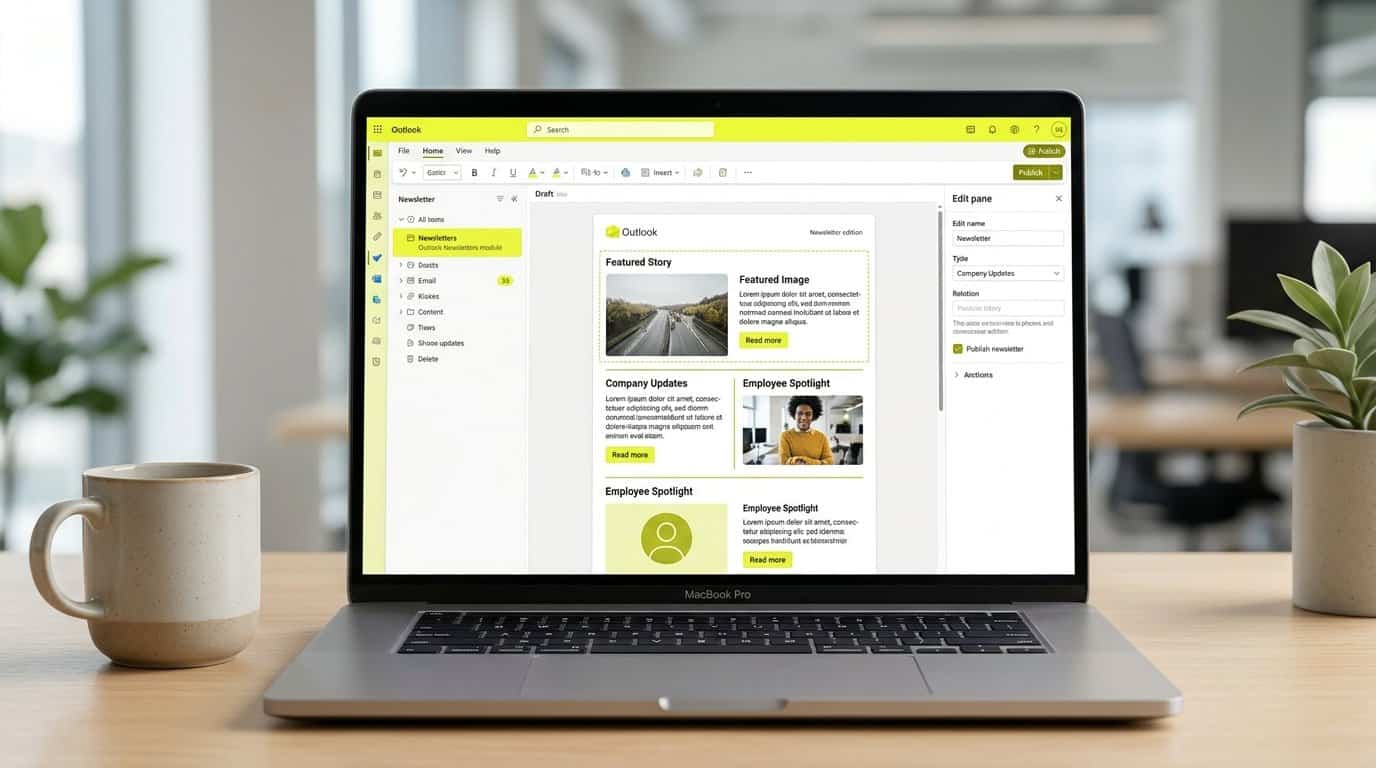
Outlook Newsletters is structured email built inside Outlook[1]. If your team still maintains HTML newsletter templates in a separate tool, pastes them into a draft and hopes the layout survives every mail client, this feature replaces that workaround with a native editor, reusable templates and a proper publishing flow. One practical detail before you plan anything: the Newsletters module runs in the new Outlook for Windows and in Outlook on the web, not in classic Outlook[2]. Check which client your comms team and your contributors actually use day to day, because the module is not part of the classic Outlook experience.
| Object | What it is | What it changes for you |
|---|---|---|
| Newsletter | The container for a recurring publication, with its own visibility settings and co-owners | One permanent home for your employee newsletter instead of a new email every month |
| Edition | A dated issue you build inside the newsletter and publish | Every send becomes a versioned edition you can revisit, copy and improve |
| Template | A reusable starting point saved from an edition | Your banner, sections and formatting are ready before the next issue starts |
Keep the three objects apart and the feature falls into place. The newsletter holds everything that persists: who can see it and who owns it. Editions are what employees actually receive. Templates carry the recurring structure, and you create both editions and templates from the same module. That structure is also what makes your results comparable over time: when every edition follows the same sections, you can see whether the leader's note or the HR update earns the attention, edition after edition, and adapt your content plan accordingly.
Check before you switch: licences and admin settings
Outlook Newsletters is not a setting you can switch on from your own account; it depends on how your tenant is licensed. Microsoft lists three prerequisites: a valid Microsoft Entra ID account, an Exchange Online mailbox and access to SharePoint in your organisation's Microsoft 365 tenant, in any version of Microsoft 365 and Office 365, whether enterprise, education or business[2]. Two gaps catch teams out. Exchange Online standalone plans that do not include SharePoint cannot author newsletter content, and Government cloud environments are not supported[2]. If part of your comms team sits on a standalone Exchange plan, those colleagues will be able to read editions but not build them.
| Access level | What users can do in the Newsletters module |
|---|---|
| ReadWrite | Full authoring: create pages and newsletters |
| ReadOnly | Read newsletters and browse pages in the module |
| NoAccess | No access to the module; they can still read editions sent or forwarded to them by email, unless Microsoft Purview Information Protection labels restrict those messages |
This is what retires the.oft files and copy-paste routines many comms teams still maintain. If your workaround is a hand-edited internal newsletter template forwarded from issue to issue, the native feature gives you the same reuse without the fragile formatting, and it keeps every edition of a newsletter in one place. One caution before you move your process across: templates cannot themselves be published, and that limit shapes how you share them with your team. The build sequence below shows where it bites.
Your admin decides who authors through the OwaMailboxPolicy.OutlookNewslettersAccessLevel property, set with the Set-OwaMailboxPolicy cmdlet in Exchange Management Shell[2]. Here is the detail that shapes your rollout: if the policy is left undefined, the service defaults to ReadWrite at General Availability, so every licensed user can author from day one[2]. If you want a phased rollout, your comms team first and the wider organisation later, your admin has to set the policy explicitly, for example by holding the org-wide policy at ReadOnly and granting ReadWrite to a pilot group of named authors[2]. Raise this with IT before you announce the new template, not after the first bounced request.
Build a reusable template step by step
Once access is confirmed, the build itself is a short, repeatable sequence, and it is worth doing properly the first time: the newsletter you set up now becomes the home every future edition returns to. You create the container once, then produce each issue from it. Work through these steps from Microsoft's guidance on creating an edition or template:
- Create the newsletter and give it the name employees will recognise in their inbox.
- Set the newsletter's visibility so the right audience can find it.
- Add co-owners so the publication never depends on one person's calendar.
- Build the first edition with your recurring sections, banner and formatting.
- Save that edition as a template so every future issue starts from the same structure.
Two template limits surprise teams, so plan around them from the start. Templates cannot be published, and templates cannot take authors or contributors. Shared authoring therefore lives at the newsletter level, where you add co-owners, and publishing always happens from an edition. In practice, treat the template as your master layout, keep the live newsletter as the collaboration space for your co-owners, and reserve the recurring slots deliberately: a leader's note, the HR update, key dates, one story that drives readers to the intranet. A template with clear slots is what turns a monthly chore into a task you finish in under an hour.
Publishing: recipients, subscribers and visibility
Publishing an edition behaves like email, with a few rules worth knowing before your first send. You address the edition with To, CC and BCC, you can address distribution lists, and you can restrict the edition's visibility before publishing. Preview the edition as well, so you catch a broken image or a half-finished section while it is still a draft, not after it reaches the whole company.
- To, CC and BCC: address the edition like any email, and keep BCC for large audiences so reply-all storms stay impossible.
- Distribution lists: reuse the lists your team already maintains instead of typing addresses edition after edition.
- Subscribers: employees who subscribe to the newsletter receive future editions without you maintaining every address by hand.
- Edition visibility: decide who can open the edition beyond the people you address directly.
Outlook Newsletters builds engagement into the edition itself. Readers can react to individual sections or to the entire newsletter, much as they react to a normal email, and they can add comments using the controls at the end of each section[2]. For you, that turns a one-way send into a signal you can act on: a section that collects reactions and comments is telling you what landed, and a silent section is telling you what to cut, rewrite or move to another channel next month.
- Per edition: authors can disable reactions and comments when they publish, which matters for sensitive announcements such as restructuring news.
- Organisation-wide: admins can disable reactions and comments for everyone through the OwaMailboxPolicy.OutlookNewslettersReactions property[2].
- Footer recommendations: by default, editions recommend other Outlook Newsletters content in the footer; authors can turn this off per edition, and admins can disable it for selected users or the whole organisation through the OwaMailboxPolicy.OutlookNewslettersShowMore property[2].
Keep the template lean while you are at it. Every section you standardise now, the header, the lead story slot, the call to action, is a section you never rebuild again. A consistent structure also pays off later: editions that follow the same pattern are the editions you can compare once you start reading the engagement signals.
A newsletter in the inbox and a news post on the intranet do different jobs, and your channel mix should reflect that. Outlook Newsletters pushes a structured edition to a defined audience, and readers react to individual sections or to the whole edition and comment at the end of each one[2]. What the feature documents stops at views, reactions and comments; per-reader open rates by department are not part of the published feature set, so check which edition analytics authors see in your tenant before you promise that number in a leadership report. Each channel then adds its own strength:
- Outlook newsletter: direct, structured delivery to the inbox; documented signals are views, reactions and comments.
- SharePoint intranet news: the persistent, targetable home employees return to.
- Microsoft Teams: real-time reach in the flow of work.
- Viva Engage: community conversation and peer visibility around your stories.
The limit to plan around is internal-only. External recipients are removed automatically when an edition is sent. If your communication plan includes contractors, agencies or partner organisations, Outlook Newsletters will not carry the message to them. Route those audiences through another channel rather than discovering the gap after the send.
The measurement picture differs just as much, and the benchmarks put numbers on it. In the Digital Workplace Benchmark 2026, an assessment based on in-depth demonstrations, expert interviews and public data, SharePoint received the lowest Analytics category score of any of the 12 evaluated platforms. If SharePoint measurement feels harder than it should, our article on building a SharePoint analytics practice explains why the problem is usually architecture rather than reporting. On the social side, posts in organisations with more than 50,000 employees averaged 443 viewers in the Viva Engage Benchmark 2026, drawn from more than 3.5 million users. Download the full reports to compare the platforms and your network by industry and company size.
It also helps to know where everything lives. Published editions generate email messages stored in recipients' mailboxes, with copies in the sender's Sent Items, while the newsletter content itself, editions, uploaded images and comments, sits in SharePoint Embedded containers inside your Microsoft 365 tenant[2]. Your data stays inside your tenant boundary, which is the answer to have ready when someone asks where newsletter content is held.
Close the loop: measure your newsletter next to every channel
- Reactions: readers respond to a single section or to the entire edition.
- Comments: readers discuss a section using the controls at its end.
- Recommendations: published editions include footer recommendations to other newsletters in your organisation by default.
That is the gap Communication Insights closes. We at Tryane built it as an all-in-one, cross-channel analytics platform that connects your email newsletters, your SharePoint intranet, Viva Connections and Viva Engage into one central dashboard, so newsletter readership by department and country sits next to your intranet and social metrics instead of in isolated reports. If you are rethinking the mix itself, our tips for cross-channel internal communication help you pick the right channel for each message. And on the page you will find how the dashboard is put together and what it measures across your Microsoft 365 environment.
You control all three. As an author you can disable the engagement features when you publish an edition, and you can turn off recommendations for an individual edition during publishing. Administrators can disable reactions and comments organisation-wide through the OwaMailboxPolicy.OutlookNewslettersReactions property, and recommendations through OwaMailboxPolicy.OutlookNewslettersShowMore[2]. If your organisation keeps comments switched off for compliance reasons, settle that with IT before you promise leadership a two-way channel.
Then put the signals to work. Reactions and comments tell you which content engages, section by section, and that is the input you need to adapt the next edition: more of what drew responses, less of what drew silence. A channel that shows you which sections land is one you can improve deliberately instead of by instinct.
How does newsletter reach compare with other channels?
You do not run newsletters alone. Your channel mix already includes your SharePoint intranet, Microsoft Teams and Viva Engage, and at some point leadership will ask which channel actually reaches people. The native picture is thin: what Microsoft documents for Outlook Newsletters comes down to views, reactions and comments, with no per-reader open-rate analytics[1]. SharePoint's reporting has a comparable weakness; our SharePoint analytics guide argues the measurement problems there are usually architecture problems, not reporting problems.
Benchmark data puts numbers on the gap. The Digital Workplace Benchmark 2026 assesses 12 digital workplace platforms on the basis of in-depth demonstrations, interviews with industry experts and analysis of publicly available data. In it, SharePoint received an Analytics score of 45 percent, the lowest score any of the 12 platforms received in any category. Download the full report to compare all 12 platforms across publishing, targeting and analytics.
Viva Engage shows the audience effect from the other side. The Viva Engage Benchmark 2026, drawn from more than 3.5 million users, reports average viewers per post that swing sharply with organisation size:
| Organisation size | Average viewers per Viva Engage post |
|---|---|
| Fewer than 2,500 employees | 536 |
| 2,500 to 5,000 employees | 412 |
| 5,000 to 10,000 employees | 437 |
| 10,000 to 25,000 employees | 321 |
| 25,000 to 50,000 employees | 95 |
| More than 50,000 employees | 443 |
Download the full Viva Engage Benchmark 2026 to compare your network by industry and company size. The pattern across both reports is the one that matters for your planning: reach is not a property of the channel, it is a property of the audience. The same message lands differently in different departments and countries, which is why a channel compared in isolation tells you very little.
So compare reach by department and country first, and rank channels second. A newsletter that reaches most of headquarters but a fraction of one plant is a targeting problem, and switching channels will not fix it. When you coordinate all of this across channels, our cross-channel communication tips cover how the pieces fit together.
Outlook Newsletters solves the production problem: structured editions, reusable templates, a clean publish flow. It does not solve the measurement problem, because a newsletter measured in isolation still leaves you collecting KPIs from disconnected tools and stitching them together by hand before every review.
Communication Insights closes that gap. It is an all-in-one, cross-channel analytics platform that connects your email newsletters, your SharePoint intranet, Viva Connections and Viva Engage in one central dashboard, so you stop exporting views from one tool and reactions from another and start reading reach and engagement side by side.
- See newsletter views, reactions and comments next to your intranet news and Viva Engage activity in one dashboard
- Segment results by department and country to check the right audience was reached
- Track how each channel trends over time instead of rebuilding the same report every month
The data you would be connecting already sits in your tenant: newsletter content lives in SharePoint Embedded containers inside Microsoft 365[2], alongside the reporting your intranet and enterprise social network already produce. Communication Insights is the same measurement engine that powers Tryane's Viva Engage Benchmark 2026, built for exactly the cross-channel question this article started from.
Book a 15-minute call with Jérémy[3] to see how Communication Insights measures Outlook newsletters next to your intranet news.
Frequently asked questions
How do I create a newsletter template in Outlook?
Create the newsletter in the Outlook Newsletters module, set its visibility and co-owners, build your first edition, then save that edition as a template. Keep in mind that templates cannot be published and cannot take authors or contributors, so treat the template as a blueprint and publish from a new edition each time.
Do I need a specific Microsoft 365 licence to use Outlook Newsletters?
Users need a valid Microsoft Entra ID account, an Exchange Online mailbox and access to SharePoint in the organization's Microsoft 365 tenant. Exchange Online standalone plans that do not include SharePoint are not supported for authoring newsletter content, and the feature is not available in Government cloud environments.
Who can author newsletters in my organization?
Admins manage this with the OwaMailboxPolicy.OutlookNewslettersAccessLevel property in Exchange Online PowerShell. ReadWrite allows full authoring, ReadOnly lets users read and browse newsletters, and NoAccess hides the module. If the property is left unset, the service defaults to ReadWrite at General Availability.
Can I send an Outlook newsletter to external recipients?
No. External recipients are removed automatically when an edition is sent, which makes Outlook Newsletters an internal-only channel. If your audience includes contractors, agencies or partners, plan a separate channel or a companion edition for them.
Can my colleagues co-author the newsletter?
Yes, at the newsletter level: you can set visibility and add co-owners so the team works on editions together. Templates are the exception, since they cannot take authors or contributors, so keep shared work on the newsletter and its editions rather than on the template itself.
Where is my newsletter content stored?
Outlook Newsletters stores its online content, including published and draft editions, uploaded images and comments, in SharePoint Embedded containers inside your organization's Microsoft 365 tenant. The email messages generated at publishing are stored in recipients' mailboxes, with copies in the sender's Sent Items folder.
Can readers react or comment on Outlook newsletters?
Yes. Readers can react to individual sections or the whole newsletter, and add comments using the controls at the end of each section. Authors can disable these engagement features when publishing an edition, and administrators can disable them for the entire organization.
Can I measure who actually read my Outlook newsletter?
The documented engagement signals for Outlook Newsletters are views, reactions and comments; the feature does not give you per-reader, per-department reach analysis. To see whether the right audiences in each country or function read your news, and to compare that with SharePoint and Viva Engage, you need a cross-channel analytics layer on top of your Microsoft 365 channels.
Sources
Further reading
• Internal communications in 2026: key figures and outlook
• An Internal Communications Reporting Template You Can Reuse Every Month
• How to Build an Internal Communications Dashboard, Step by Step
• Internal communication strategy: build one in six steps
If you want to see what cross-channel reporting looks like against your real data, Tryane runs a 15-minute walkthrough with no slides. Book a slot with Jérémy.